The USB-C Cable Buying Guide: Check Power, Data and Display Separately
Two cables can look identical and do very different jobs. A three-part checklist helps you choose one for charging, file transfers, or a desk display.
In this article
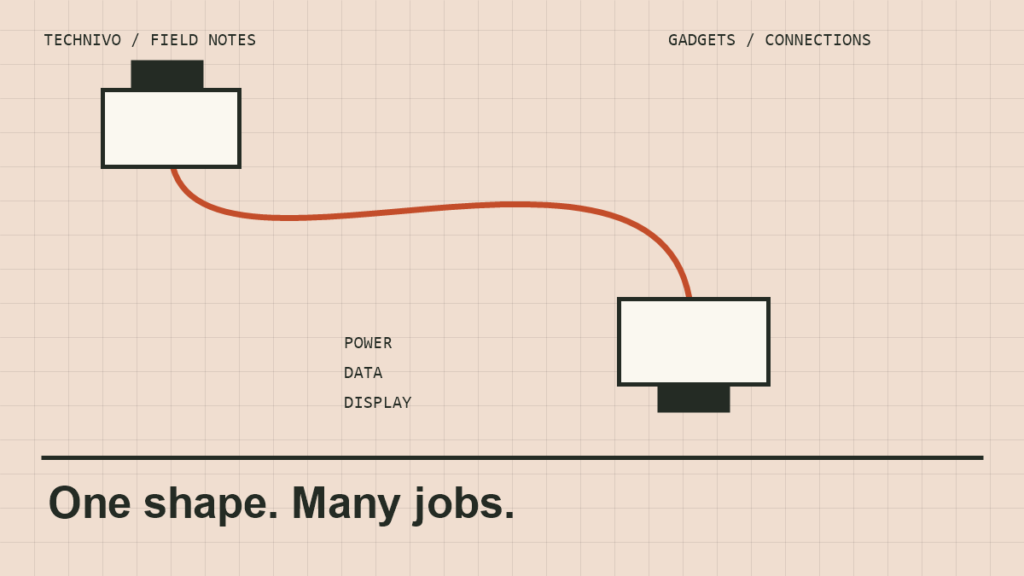
You plug a laptop into a monitor with a USB-C cable. The connector fits neatly, but the screen stays blank. Later, the same cable charges a phone without complaint. The cable may not be broken; you may simply be asking it to do a job it was never designed to do.
USB-C makes the physical connection convenient. It does not make every port, charger, and cable interchangeable in capability.
Read the rating, not the shape
The USB Implementers Forum’s cable guidance explicitly says certified cables can serve different purposes, and certification does not add capabilities to the devices connected to them. Its current compliance rules call for USB-C-to-USB-C power markings of 60W or 240W. Data-rate markings are also required for the relevant cable categories, with an exception for USB 2.0 cables.
The useful shopping habit is to look for separate statements about charging power and data speed. A large wattage number alone does not tell you how quickly a folder of videos will copy.
1. Decide what you need to charge
Start with the device manufacturer’s charging requirements. A phone, a compact laptop, and a workstation can have very different needs. Match the charger and cable to those documented requirements rather than choosing the biggest number on a product page.
When buying a multi-port charger, also read how its output is shared. A listing’s headline rating may not describe what one port supplies while several devices are connected. Check the manufacturer’s port-by-port table for the combination you expect to use.
2. Decide whether data speed matters
If the cable lives beside the bed and mainly charges a phone, your priorities may be durability, length, and appropriate power support. If it connects an external SSD to a computer, documented data performance becomes central to the purchase.
Check the drive and computer port as well as the cable. Buying a cable with a higher advertised capability cannot make an older device exceed its own limit. Keep the complete connection in mind, including a hub or adapter in the middle.
3. Check display support explicitly
For a monitor or dock, read the manuals for the computer, display, and connection accessories. Look for the supported display connection and the resolution and refresh rate you intend to use. If the listing only says “USB-C charging cable,” ask the seller for explicit display compatibility before ordering.
A simple written shopping note helps: “Connect this laptop to this monitor at this resolution, while charging.” That is much easier to verify than “buy a good USB-C cable.” It also gives customer support something specific to answer.
Keep the desk easy to troubleshoot
Once a setup works, label the cable by its job. A small tag saying “desk monitor” or “SSD” saves repeated experiments later. Keep the product specification or order details somewhere you can find them, particularly if several similar cables share a drawer.
If a connection fails, simplify it. Try the direct connection specified by the device maker, then add the dock or adapter back into the arrangement. Change one component at a time so the result tells you something useful. Stop using a cable with visible damage or a loose connector.
The useful upgrade is clarity
There is no single cable recommendation that fits every phone, laptop, and display. Our buying advice is to pay for documented capabilities you will use, from a seller that makes those capabilities clear. A modest cable with the right specification is a better purchase than an impressive-looking cable whose listing leaves the important questions unanswered.
Standards guidance checked September 23, 2026. This is an explanatory buying guide, not a hands-on test of a particular cable or charger.